Konto(Account)#
Profil(Profile)#
Účet (User Account)#
Changing the Two-Factor Authentication Method#
- Open your account information under Konto→Profil→Účet.
- Select how the verification code for two-factor authentication will be delivered.
- When using email or SMS verification codes, your account contact details are used automatically. If you want to change these details, simply overwrite them in the Použiť emailový účet/telefónne číslo konta text fields.
- If you want to use TOTP-based 2FA, follow this procedure.
- Click the Save button in the upper-right corner of the screen.
Priradené čísla (Assigned Numbers)#
Blokovanie správ (Message Blocking)#
In this section, message sending can be blocked either based on a number prefix for foreign recipients or based on the operator for recipients within Slovakia.
Nastavenia virtuálneho čísla (Virtual Number Settings)#
In the virtual number settings, you can configure the interfaces to which received messages will be forwarded. Messages can be forwarded to three types of endpoints:
- Email addresses
- Mobile phone numbers
- URLs
Prehľad API kľúčov (API Keys Overview)#
This section of the application displays all API keys assigned to your account.
Creating an API Key#
To use any API version, you must first generate your own API key via the web application under Konto → Prehľad API kľúčov → Vygenerovať nový kľúč.
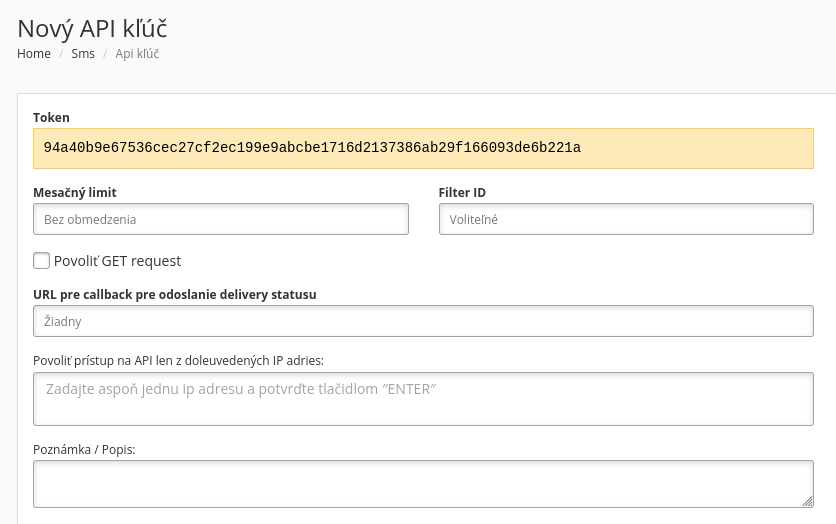
- The form for generating new keys contains the token field, which represents the API key itself and is generated automatically. S- The Filter ID field can be used to identify key that was used to send particular message.
- There is also an option to allow GET requests for the token (by default only POST requests are allowed), which is recommended only in necessary cases.
- In the Callback URL field, you can specify an optional URL path for a client application or script that will be automatically called when the message status changes. Creating this script is up to you, as it represents an implementation within your own solution that assumes usage of one of the API interfaces. More information can be found in the descriptions of the individual API interfaces.
- A very important field is the specification of public IP addresses from which SMS messages can be sent through the specific API interface. This setting serves as an additional security measure and it is mandatory to define the IP addresses of your servers.
(Aliasy) Aliases#
Aliases allow access to a single account using multiple login credentials.
Creating an Alias#
- Open the alias creation form under Konto → Vytvoriť alias or by clicking Nový alias k aktuálnemu účtu in the alias overview.
- Fill in the fields in the Kontaktné údaje(Contact Details) section as well as Prihlasovacie meno(Username) in the Prihlasovanie(Login) section.
- Select how the login credentials should be delivered. -If you don't fill in the email or SMS fields, login credentials will be delivered to the contact details specified above.
- Check Požadovať dvojfaktorovú autentifikáciu(Require two-factor authentication) and select the method to be used for two-factor authentication.
- Click the Pridať(Add) button in the upper-right corner of the screen.
Difference Between an Alias and a Regular Account#
Aliases have the same permissions and limitations as the account they were created for, except for managing the aliases themselves.