Contacts#
The Contacts section enables simple management of message recipients. Users can create new contacts, edit existing ones, and organize them into groups according to their needs.
Contacts Overview#
To display the contacts overview, select Contacts → Contacts Overview in the top navigation bar. A page divided into several functional sections will appear.
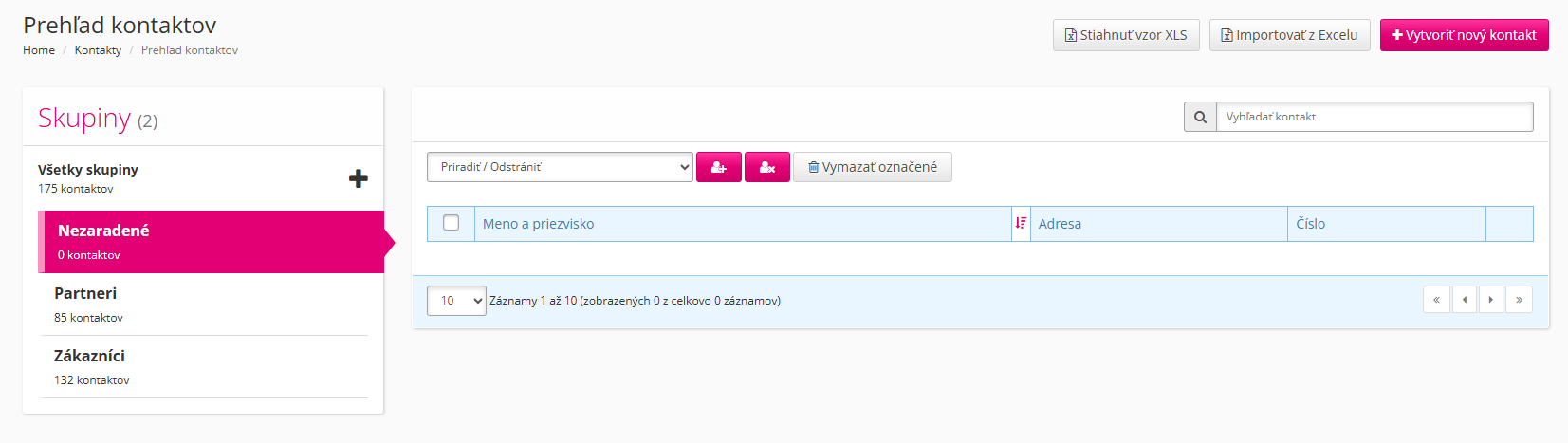
- On the left side of the screen, there is a panel for managing contact groups, where groups can be created, edited, and deleted.
- The right side of the interface is used to browse the contact list — here the user sees all their contacts, can view their details, edit them, remove them from the list, and also assign them to selected groups or remove them from groups.
- At the top of the screen there are buttons that allow adding a new contact either via a form or by importing an .xls file.
Groups#
Groups are used to simplify contact organization. Each contact can be assigned to any number of groups. Contacts that have not been manually assigned to any group are automatically placed into the Unassigned group.
Groups can be created and edited in the contacts overview. After clicking on any group, the contacts belonging to that group will be displayed in the list on the right side of the screen.
Creating a new group
- Click the + button next to All groups.
- In the dialog that appears, enter the group name.
- Click ✔ to save.
Editing or deleting a group
- Hover over the group and click the pencil icon to edit.
- In the dialog that appears, rename the group.
- Confirm the change or delete the group.
Info
Deleting a group does not affect the contacts that belong to it.
Contact List#
The contact list displays all contacts of the logged-in user. Contacts can be filtered by name or phone number using the text field located in the upper-right corner. Clicking on a column header also allows sorting contacts by the respective field.
Info
At least 4 characters must be entered to filter contacts.
Adding and removing contacts in groups
Contacts can be selected using the checkbox at the beginning of each row. Selected contacts can then be added to a group, removed from a group, or deleted entirely. The group to work with must be selected via the dropdown labeled Add/Remove, located above the contact list.
- Adding selected contacts to a group is done by clicking the button with the person icon and + symbol.
- Removing contacts from a group is done using the adjacent button with the person icon and X symbol.
Creating Contacts#
- Open the contact creation form via Contacts → Create New Contact or from the contacts overview by clicking Create New Contact.
- Fill in the form fields.
- The only required fields are last name and at least one phone number, which must be clicked to be marked as primary.
- Click Save.
Importing Contacts from Excel#
- Download the template file using the Download XLS template button at the top of the contacts overview screen or here.
- Enter your contacts into this file, or create your own file with the same structure.
- Each new contact must be entered on a new row.
- Required fields are last name and phone number.
- Save the file.
- Upload the file using the Import from Excel button, also located at the top of the contacts overview screen.